
PC settings guide
Best Dawnwalker PC Settings for More FPS
Dawnwalker PC settings based on published launch tests: what to lower first, Balanced upscaling, Frame Generation tradeoffs, and a 1440p starting point.
On this page 6 sections
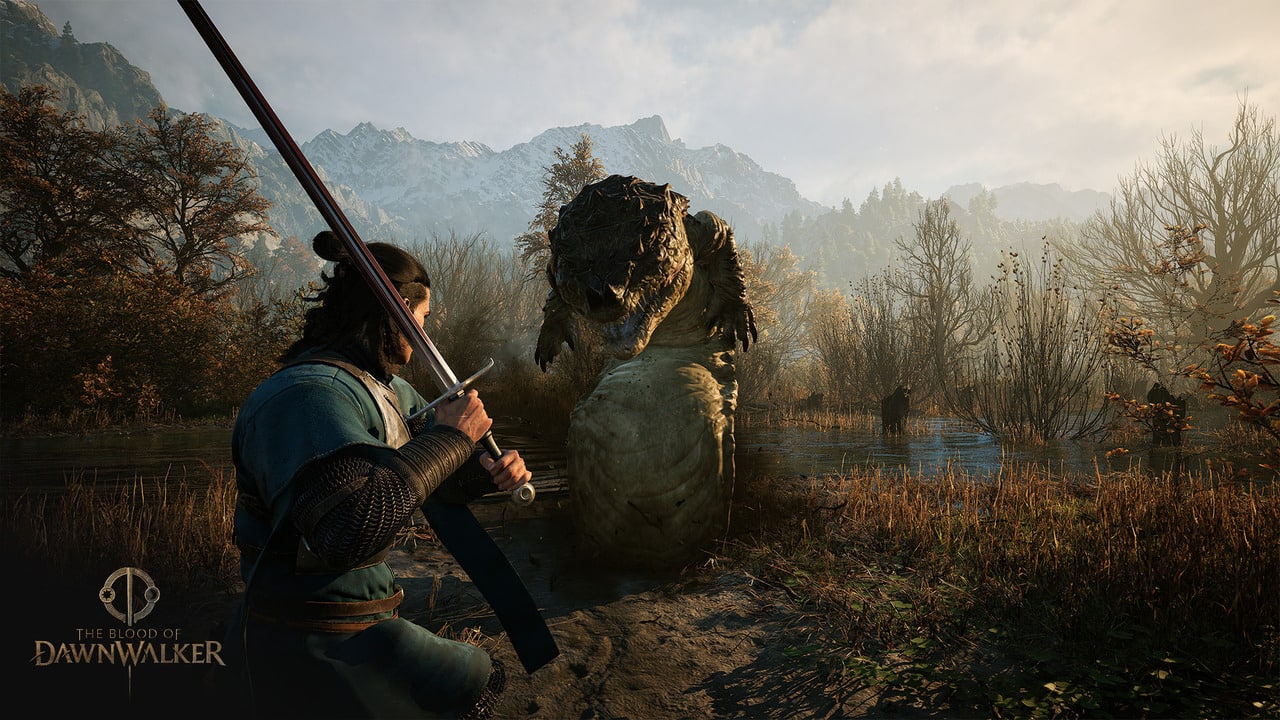
Official gameplay screenshot from Community Bulletin Board #10; not a PC benchmark. © Rebel Wolves / Bandai Namco Entertainment. View media credits
PC Gamer's launch testing on an RTX 4060-class system found that these four reductions recovered performance while preserving much of the High preset's image quality.
Best Dawnwalker PC settings
Start from the preset that matches your official hardware tier, leave DLSS or FSR on Balanced, then change the four heaviest options:
| Setting | Recommended | Why |
|---|---|---|
| Shadow Quality | Low | Largest measured gain in dense forest scenes |
| Light Quality | Medium | Recovers GPU headroom with a modest visual change |
| Foliage Quality | Medium | Reduces ground and forest density where performance drops hardest |
| Detail Quality | Medium | Helps complex outdoor scenes without flattening the whole image |
In PC Gamer's published launch benchmark, a Ryzen 7 7700X and RTX 4060 at 1440p averaged roughly 50 FPS on High/Balanced and about 62 FPS with this custom mix. That is the author's test system and route, not an in-house benchmark or a universal promise; use the values as a tuning order.
Which upscaling mode should you use?
The official PC requirements assume Balanced upscaling at every published performance tier. That condition matters: the 1440p/60 specification is not a native-resolution target.
Balanced is also the sensible image-quality starting point. In foliage-heavy scenes, dropping from DLSS Balanced to Performance produced a relatively small average gain in one launch test while adding more shimmer and noise. FSR's lowest-quality modes can show similar instability around rocks, foliage, and the player character.
Use Performance only after lowering the four settings above and testing the most demanding area you have reached. A quiet interior is not a useful benchmark for Vale Sangora's forests or multi-character nighttime fights.
Should you enable Frame Generation?
The launch build includes experimental 2x Frame Generation for supported Nvidia and AMD hardware. It can make a 45–55 FPS base rate feel smoother, but it creates interpolated frames rather than improving simulation performance.
Enable it when:
- Your base frame rate is already stable enough to control comfortably
- You want smoother camera motion on a recent RTX or Radeon card
- A small latency increase and occasional artifacts are acceptable
Leave it off when:
- You already hold 60 FPS and prefer the cleanest foliage and character edges
- Base performance is so low that input response feels sluggish
- Fast camera movement produces distracting ghosting or breakup
In the RTX 4060 launch test, Frame Generation lifted the displayed average from about 50 to 73 FPS with a small measured latency increase. Treat that as a hardware-specific example.
How to tune without chasing bad data
- Update the GPU driver and install the current game patch.
- Choose the official preset for your resolution tier.
- Enable Balanced upscaling.
- Test a repeatable run through dense woodland and one busy night fight.
- Lower shadows first, then lighting, foliage, and detail.
- Change one remaining option at a time and compare both average smoothness and stutter.
- Add Frame Generation only after the base settings are stable.
Avoid changing ten options at once. Dawnwalker's hardest scenes are uneven, so a setting that looks fine in one clearing can still drop sharply inside forest cover.
Official target reminder
The published PC tiers range from 1080p/30 on Low to 4K/60 on Ultra, all with Balanced upscaling. The 1440p/60 High tier lists an RTX 4060, RX 7600 XT, or Intel Arc B580 with an eight-core CPU class and 16 GB RAM. Launch testing suggests that listed hardware may require the custom reductions above in demanding scenes.
Use the PC requirements guide for the full CPU, GPU, VRAM, storage, and target table.
PC settings FAQ
Which setting should I lower first?
Shadow Quality. It produced the clearest gain in the launch benchmark and remains visually acceptable on Low during normal play.
Is Balanced upscaling optional for the official targets?
No. The official target chart explicitly assumes it.
Will Performance upscaling guarantee 60 FPS?
No. It may add only a small gain while reducing image stability, especially around foliage.
Does Frame Generation double performance?
No. It inserts frames to improve perceived smoothness and can add latency or artifacts.
Why test at night as well as day?
Busy nighttime encounters combine effects, lighting, characters, and vampire abilities, which can expose drops that an empty daytime route misses.
Settings retain the September 4, 2026 review of launch testing and official requirements. On September 12, source attribution was clarified and the image replaced with an official gameplay illustration. Benchmark numbers come from PC Gamer's test system; they do not predict every patch or hardware combination.
Continue by topic
Related guides
The Blood of Dawnwalker PC Requirements
Official Dawnwalker PC system requirements for 1080p, 1440p, and 4K, including CPU, GPU, RAM, VRAM, SSD, FPS targets, and Balanced upscaling.
The Blood of Dawnwalker Gameplay Explained
How Dawnwalker's 30-day narrative sandbox, day and night forms, quests, combat, exploration, and progression work.
The Blood of Dawnwalker: No Denuvo, Steam vs GOG
Dawnwalker has no Denuvo at launch, per a developer Q&A. Compare Steam licensing, GOG's DRM-free version, performance implications, and launch checks.